Login Screen
Overview
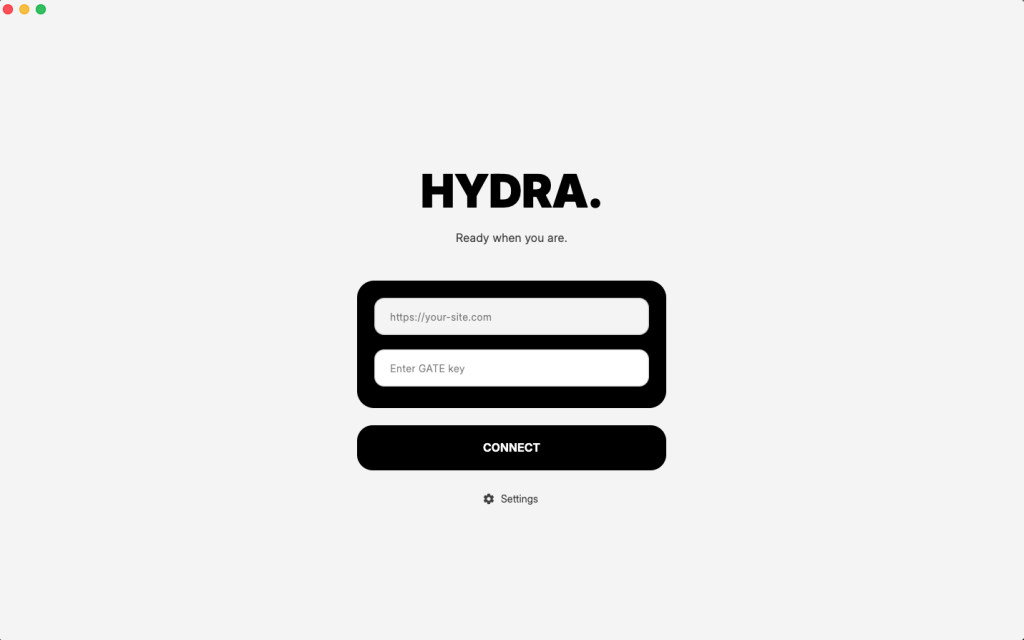
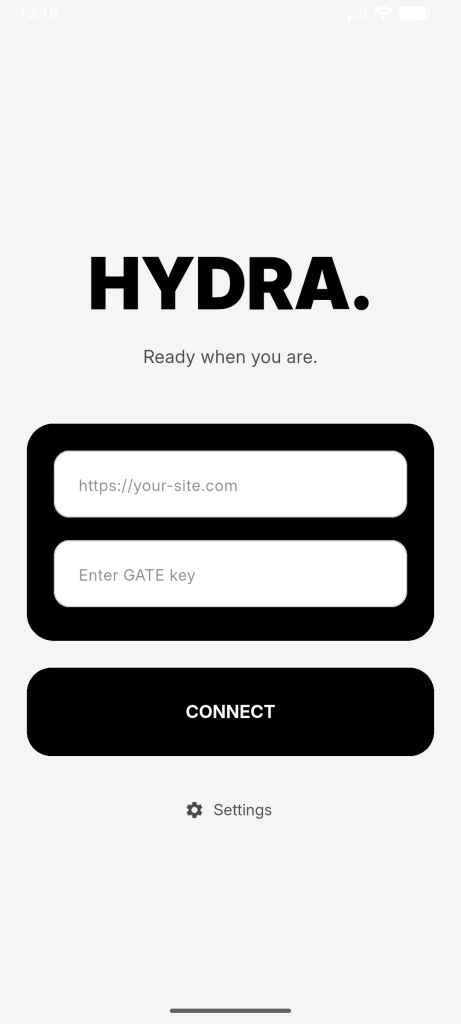
The login screen is used to connect the Hydra Check-in App to a Hydra Bridge installation.
The app requires two inputs:
- a site URL
- a GATE key
There are no user accounts or credentials involved. Access is controlled entirely through the GATE key.
Site
The Site field expects the full URL of the website where the Hydra Bridge plugin is installed.
Examples:
- https://yourdomain.com
- https://events.yoursite.com
The app uses this URL to send requests to the Bridge plugin and establish a connection.
If the URL is invalid, unreachable, or Hydra Bridge is not available on that site, the connection will fail.
GATE key
The GATE key is generated within the Hydra Bridge plugin.
It defines:
- which events are accessible
- which attendees can be loaded
- which check-ins are allowed
Each GATE key represents a specific access scope. Different keys can be created for different use cases (e.g. different entry points or teams).
If the GATE key is invalid or does not match the specified site, authentication will fail.
Connect
The Connect button initiates the connection process.
After entering the Site and GATE key, the app sends a handshake request to the Hydra Bridge.
If successful:
- the connection is validated
- available events are retrieved
- the app proceeds to the next screen
If unsuccessful:
- an error message is returned
- no data is loaded
Settings
The Settings option, located below the Connect button, opens the Settings screen.
This screen contains configuration options that are available before login. Some settings are only accessible after a successful connection and will not be visible at this stage.
How it works
After entering the Site and GATE key, the app sends a handshake request to the Hydra Bridge.
If successful:
- the connection is validated
- available events are retrieved
- the app proceeds to the next screen
If unsuccessful:
- an error message is returned
- no data is loaded
Notes
- No user accounts are required
- No passwords are used
- Access is controlled entirely via the GATE key
- Changing the GATE key changes the available data and permissions