Attendees
Overview
The Attendees screen is where individual check-ins happen.
It shows a list of attendees based on how you entered the screen. There are two entry points, and they define what you see:
- If you open it via the attendees icon, the list includes all attendees across all events available in the current GATE key scope.
- If you open it by selecting a specific event from the Events screen, the list is filtered to that event only.
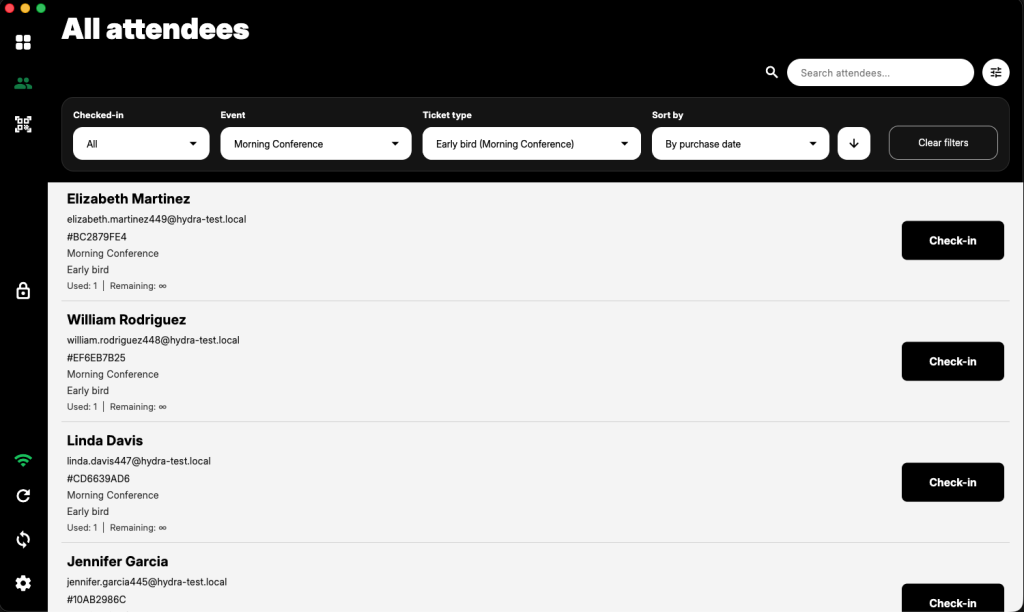
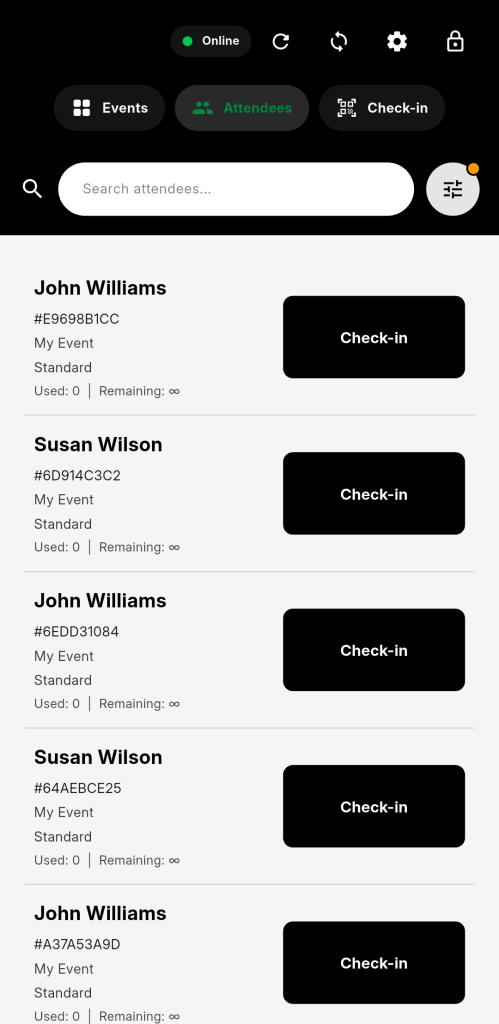
Filters and search
The top section, when expanded, provides filtering and search tools.
You can filter by check-in status, event, and ticket type, and adjust sorting order. There is also a search field for locating attendees quickly.
Filters apply immediately and operate only on the current dataset.
This is typically the fastest way to locate a specific attendee without navigating away or opening additional screens.
Display configuration
All attendee fields can be shown or hidden via Settings -> Display & privacy
This includes:
- first name
- last name
- email address
- ticket code
- ticket type
- event title
- check-in button
This allows the screen to be reduced to only the necessary information.
For example, in some environments you may want only names and ticket codes. In others, you may want to hide everything except the bare minimum. It’s completely up to you and your scenario.
Or remove the check-in button entirely to prevent accidental actions (yes, that’s a thing too).
What’s more, settings can be locked with a PIN and once locked, changes are not possible without entering the PIN. This is useful in shared-device scenarios or when attendee data visibility needs to be controlled strictly.
If a device should not expose certain data, this is where that decision becomes permanent (until unlocked).
Hydra does not enforce a layout. You decide what is visible.
Behavior notes
The attendee list is retrieved from the server and stored locally.
This allows the app to function even without an active internet or connection to the master device. Any changes made while offline will be synchronized once connectivity to the internet or master device is restored.