GATE keys
Overview
The GATE keys section is where access is defined. Not users, not roles, just keys.
Each GATE key tells the Hydra Check-in App exactly what it is allowed to see and do. Which events appear, which attendees are loaded, and where check-ins are accepted all come from here. When a device logs in, it brings one key with it. Nothing more, nothing less.
Adding a new GATE key
Click Add New GATE key to open the creation form.
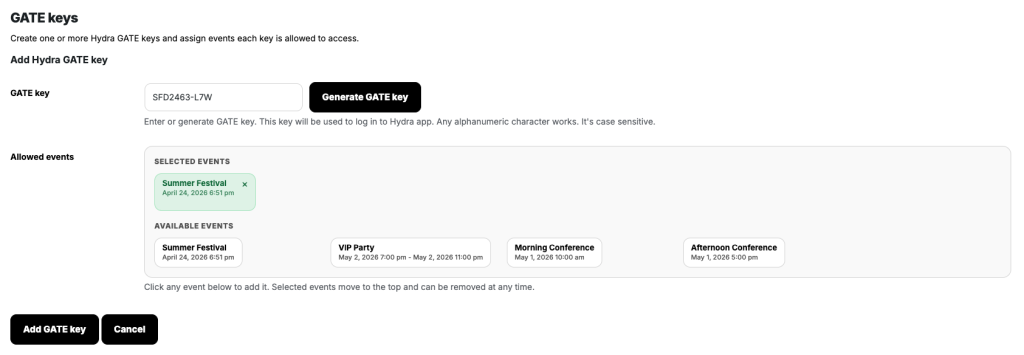
You can type in your own key or let the system generate one. The format is flexible and any alphanumeric string works… but it is case-sensitive, so Gate123 and gate123 are not the same thing.
If you’re not feeling creative, there’s Generate GATE key button for you. Use it.
This is the value that will be entered in the app. If it doesn’t match, the app doesn’t get in.
Assigning events
Below the key field is the event assignment area.
You’ll see two groups: selected events and available events. Click an event to move it into the selected group. Click it again to remove it. That’s the entire mechanism.
Only selected events will exist from the app’s point of view when this key is used. Everything else is invisible.
Saving the key
Once the key and events are set, click Add GATE key to store it. If you change your mind, Cancel simply closes the form without saving anything
Existing keys
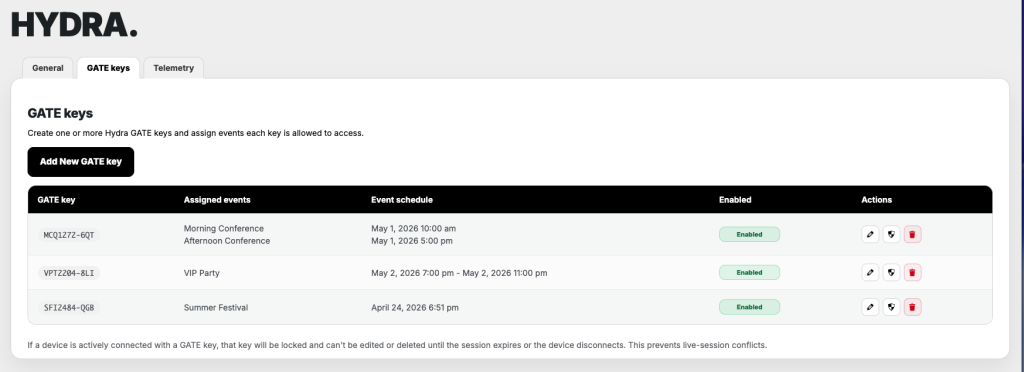
All created keys are listed in the table below.
Each row shows the key itself, the events assigned to it, their schedule, and whether the key is currently enabled. This is your overview of who can access what.
If something feels off in the app, this is usually where the answer is.
Enabled state
Keys can be enabled or disabled.
A disabled key is effectively dead. The app won’t be able to use it to connect. No warnings, no partial access, just no entry.
Editing and deleting
Keys can be edited or removed, but only when they are not in use.
If a device is currently connected with a specific GATE key, that key becomes locked. Editing and deleting are temporarily unavailable. This is intentional because changing access rules mid-session is a good way to create inconsistencies.
Once the device disconnects or the session expires, the key becomes editable again. Just like it says on the tin.
GATE key privacy settings
In the Actions column of the table of existing GATE keys, you will notice a “shield” icon which is how privacy settings part is accessed.

Privacy settings allow you to control which attendee information is forwarded from Hydra Bridge to Hydra Check-in applications.
If a field is disabled here, that information is never included in the data sent to devices connected through this GATE key.
That means there is no way for the application to display it later, regardless of app settings.
Currently, privacy controls are available for:
- First name
- Last name
- Email address
By default, all fields are enabled when creating a new GATE key.
How this works together with app privacy settings
Hydra Check-in applications also include their own privacy and visibility controls under Settings -> Display & privacy
These settings determine where information can appear inside the app, such as:
- Attendee list
- Check-in history
- Check-in result screen
- Attendee preview
However, app settings can only control visibility of data that was actually received from Hydra Bridge.
If a field is disabled in the GATE key privacy settings, it is never forwarded to the application in the first place. Because of that, the app cannot display it anywhere, even if visibility is enabled locally on the device.
This creates an additional privacy layer between your attendee database and the devices used at the entrance.
Instead of relying on operators to hide or avoid sensitive attendee information, the site administrator can decide upfront which data is allowed to leave the website at all.