Check-in
Overview
The Check-in / Scanner screen is where ticket codes are captured and processed.
It is built to keep focus on a single action: scan → result.
The preferred check-in method can be configured in Settings -> Check-in method
Available methods depend on the device.
The screen also includes a check-in history panel, which can be enabled or disabled in Settings -> Display & privacy
Mobile devices
Check-in methods
On mobile devices, two check-in methods are available:
- Device camera (rear camera)
- Input device (external scanner or keyboard input)
The camera view is optimized for direct scanning using the device. External scanners can be used as an alternative, in which case input is received without using the camera.
Camera availability
The camera option is only available if the device has a suitable rear camera.
If not, the option is not shown and only Input device is available.
Preferred method
The default method when opening the scanner screen can be set in Settings -> Check-in method
This determines whether the screen opens in camera mode or waits for input from an external device.
Top bar behavior
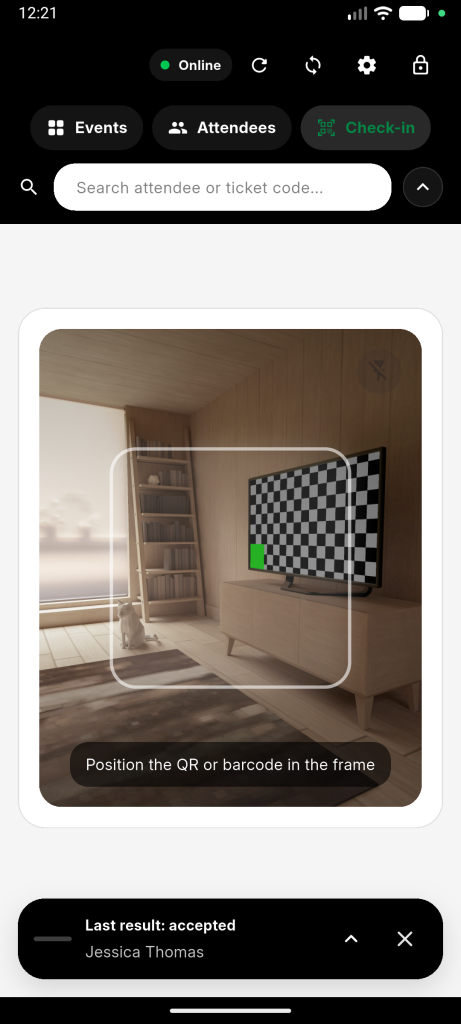
On mobile devices, the top bar is collapsed by default.
This keeps the focus on the scanning area.
It can be expanded at any time using the arrow control. When expanded, it provides:
- access to the Events screen
- access to the Attendees screen
- access to attendee search
Check-in history
A check-in history panel is available on the screen.
It shows recent scan results and can be enabled or disabled in Settings -> Display & privacy. If enabled, it will be shown at the bottom of the screen with the last check-in result. If expanded, it will display whole check-in history with as many items as you have enabled in Settings -> Display & privacy. It can be also collapsed so that it is out of the way even more during ticket check-in.
Check-in methods
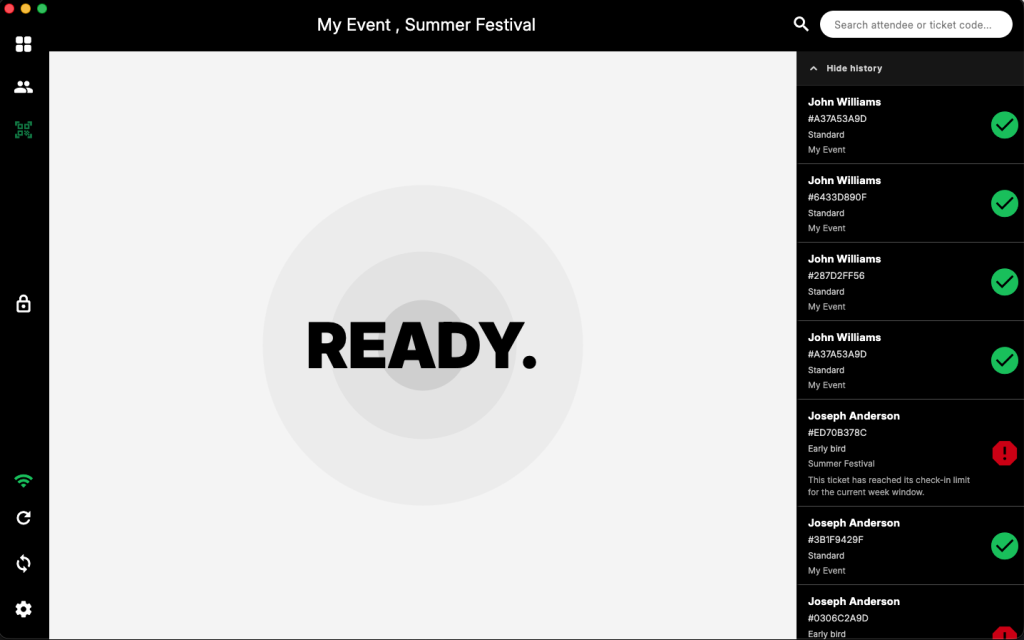
On desktop devices, the primary method is Input device. This means that an external device such as barcode or 2D scanner should be connected to scan the tickets.
Camera availability
Camera-based scanning is not available in standard desktop environments.
An exception applies to larger mobile devices (such as iPads and tablets) running in landscape mode. If a rear camera is available, camera scanning may still be used.
Check-in history
If check-in history is enabled in Settings -> Display & privacy, a persistent check-in history will be displayed on the right side of the screen with as many history items as you have set in the settings.
Attendee search
In the upper right corner of this screen, there is a persistent search bar which you can use to search for attendees manually at any point (please note that this will require regular keyboard connected to device.